
 By Yilu Support
One of the biggest challenges for proxy users is setting everything up. Configuring a rotating residential proxy correctly can be tricky if you don’t know what you’re doing. Even getting just one setting or detail wrong can leave your proxy inoperable or expose you to the same risks your socks proxy or HTTP proxy is there to prevent.
We’ve compiled a quickfire, three-step guide to help you set up your YiLu Proxy rotating residential proxy. Just follow our instructions, and you should be up and running with a socks5 proxy you can trust! If you still need help, check out our more detailed guide.
What you need to know before configuring your YiLu Proxy Rotating Residential Proxy
Before getting started, you’ll need to understand a few things before setting up your rotating residential proxy.
· YiLu Proxy’s agent types
YiLu Proxy offers various proxy options. Static proxies simply mask your identity with another single IP. Dynamic or rotating proxies, however, continuously change the IP address.
· The type of rotating IP you’re using
Data centre IPs use IP addresses stored and reserved for data centres. Residential IPs, however, use the IP addresses of real devices and are often more effective than the data centre options, though a little slower.
· Your targeted regions
Will you be setting your location based on country, state, or city? Decide beforehand which geotargeting level and details you want to use.
· Your proxy information format
Understanding how your proxy information is formatted will help make things much easier during setup. YiLu Proxy uses the “IP:Port:Username:Password” and “Host:Port:Account:Password” formats.
· Which software you want to use the proxy for
YiLu Proxy’s rotating residential proxy will work effectively for most browsers, programs and devices. This is what makes it such an effective and dynamic tool.
· And if your targeted software is HTTP proxy protocol and Socks5 proxy protocol-compatible
YiLu Proxy’s rotating residential proxy supports the standard HTTP protocol as well as the latest, more effective Socks5 protocol.
3 Simple Steps to Configure Your YiLu Proxy Rotating Residential Proxy
Using a YiLu Proxy rotating residential proxy is easy. The YiLu Proxy interface is known to be easy to use, and operating the proxy itself is very simple.
This step-by-step guide article will introduce you to the specific usage method for the YiLu Proxy rotating residential socks proxy and get you up to speed for getting started.
Step 1: Preparation
During the first step, you’ll need to prepare your device for the proxy. This means downloading the required software, topping up or recharging your account and entering the specific details for your chosen proxy.
1. Download the YiLu client – You can download the zip file,unzip to a path other than desktop, install it, and run the main YiLu Proxy program.
2. Recharge your account – Before proceeding, ensure you have enough to pay for your proxy. Click the””
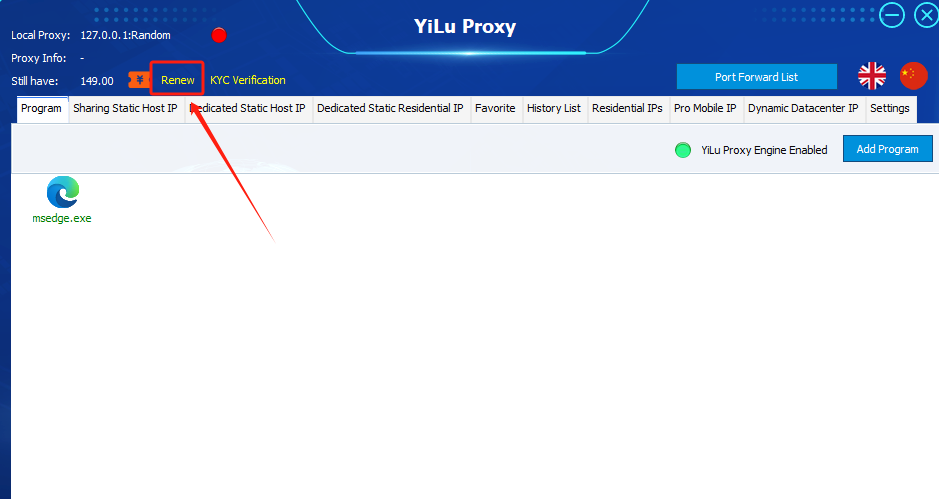
YiLu Proxy supports many different recharging options, including:
· Alipay
· USDT-TRC20
· USDT-ERC20
· BTC
3. Set up – Once in the YiLu interface, select the “Rotating Residential IP” tab to open the corresponding page. Next, you’ll need to choose:
· Your desired country, state, or city.
· The “Rotating Residential IP” option.
· The “IP:Port:Username:Password” option at the bottom.
· The number of proxies to generate (You will see this in the lower right-hand corner)
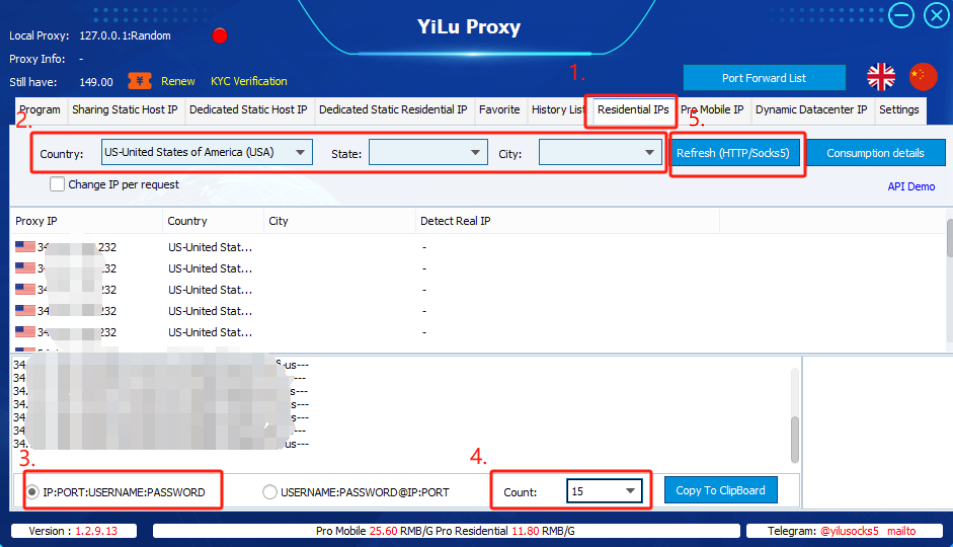
5. Retrieve your IP addresses – Hit the “Refresh (HTTP/Socks5)” button and get a list of your rotating IP addresses.
A list of your socks5 proxy IPs will appear. If all the proxy IPs in the list appear identical, remember that these addresses represent our transit server IPs. The actual IP you are going to be using is our export IP.
To see the real IP, right-click and hit “detect IP”. You will then be able to see the real IP you need to use.
Step 2: Copy the IP information
The next step involves extracting the IP address information. If you are using fingerprint browser tools, you can follow the below steps.
1. To copy a specific IP’s information, right-click on the IP you want to use and select “Copy IP and Port”.
2. To copy the details of all the IPs in the list you want to use at once, simply click “Copy to Clipboard.” This will copy the IP information you need to continue your setup.
3. Remember to confirm that the “Change IP per request” box is left unchecked, or else the rotating residential IP address will switch every request.
The format of YiLu Proxy’s rotating residential proxy is “host:port:account:password”.
Step 3: Complete IP information & connect
The final step involves using the copied IP information for your rotating residential proxy.
1. You can then paste the copied IP information to your targeted software, mobile phone, fingerprint browser or wherever you need it. Quick and easy.
2. Simply drag your browser or software program into the interface and click “connect” on the IP you wish to use.
3. If the software you are using supports the HTTP proxy protocol or the SOCKS5 protocol, this is a simple copy-and-paste process.
4. Finally, check to see whether the proxy is connected. The interface will indicate that the proxy is working with a green indicator at the top of the screen.

Once connected, you double-click to run the software out of the “programs” tab. Once connected to your rotating residential proxy, you’re secure and protected! You can check to see if the proxy is working by.