
 By Yilu Support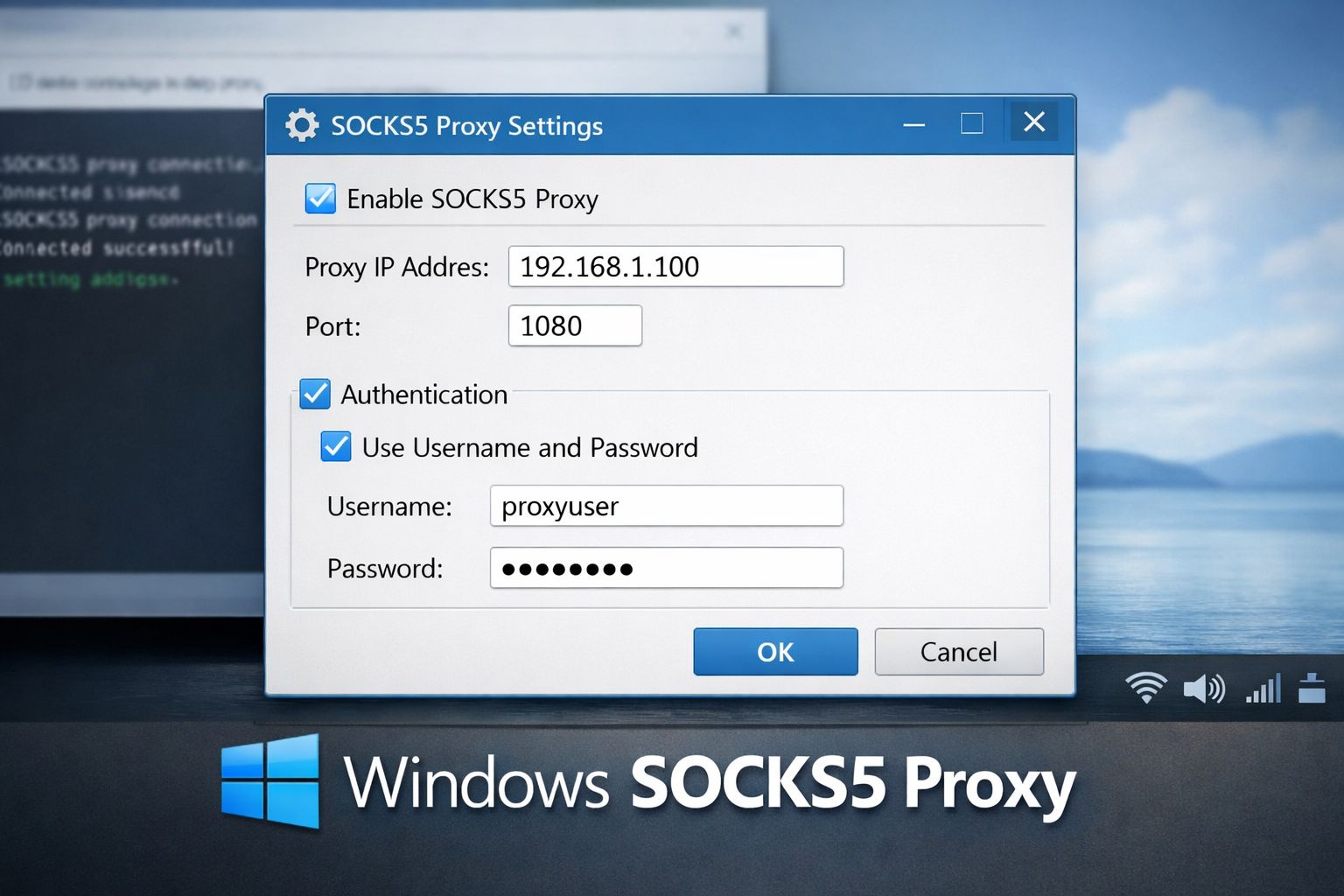
For IT practitioners and web developers, managing network traffic via a windows socks5 proxy is often a necessity rather than a luxury. Unlike standard HTTP proxies that only handle web traffic, a socks proxy operates at a lower layer, making it versatile enough to handle any protocol, including TCP and UDP. This flexibility is critical when downloading dependencies for frameworks like Flutter or managing data scraping tasks that require bypassing strict geo-restrictions.
Why SOCKS5 Over Standard HTTP?
While HTTP proxies are sufficient for basic web browsing, a SOCKS5 implementation offers superior performance for modern workflows. It supports advanced features like DNS requests through the proxy and BIND functions for port forwarding. For professionals requiring high anonymity, using a rotating proxy or a dedicated proxy via SOCKS5 ensures that your real IP remains shielded even during complex network operations.
Configuring Proxy Settings on Windows

There are two primary ways to manage your proxy settings natively on Windows, though they come with distinct caveats.
1. The Modern UI Method
In Windows 10 and 11, the most direct route is through Settings > Network & Internet > Proxy. Here, you can toggle “Use a proxy server” and enter your IP and port. However, many users find this interface unreliable for SOCKS5 specifically, as the system may default to HTTP protocols or fail to resolve DNS correctly.
2. The Legacy Internet Options Method
For a more stable global configuration, the “Internet Options” menu (accessible via Control Panel) remains the professional’s choice.
• Navigate to the Connections tab and click LAN Settings.
• Under Advanced, you can explicitly define the SOCKS address while leaving other fields blank. This method is often more “sticky” for system-wide applications that rely on legacy Windows network stacks.
Browser-Level and Third-Party Solution
If global settings prove too restrictive, browser-specific configurations are highly effective. Firefox stands out for its native support, allowing you to configure a windows socks5 proxy independently of the OS settings. For Chromium-based browsers like Chrome or Edge, extensions such as ZeroOmega (the successor to SwitchyOmega) provide the necessary granularity to switch between different dedicated proxy profiles on the fly.
For those managing large-scale operations, professional-grade tools are recommended. Yilu Proxy is an excellent solution in this space, offering a robust infrastructure for both residential and datacenter needs. It simplifies the management of rotating proxy pools, which is vital for SEO monitoring and price tracking. They currently offer a free trial, allowing you to test their connection stability and speed before committing to a plan.
Conclusion
Setting up a windows socks5 proxy requires understanding the balance between system-wide configurations and application-specific needs. While Windows’ native tools provide a starting point, developers often find that a combination of legacy settings and dedicated third-party software like Yilu Proxy offers the most reliable experience for professional web tasks. Always verify your configuration by checking your public IP after setup to ensure your traffic is correctly routed.