
 By Yilu Support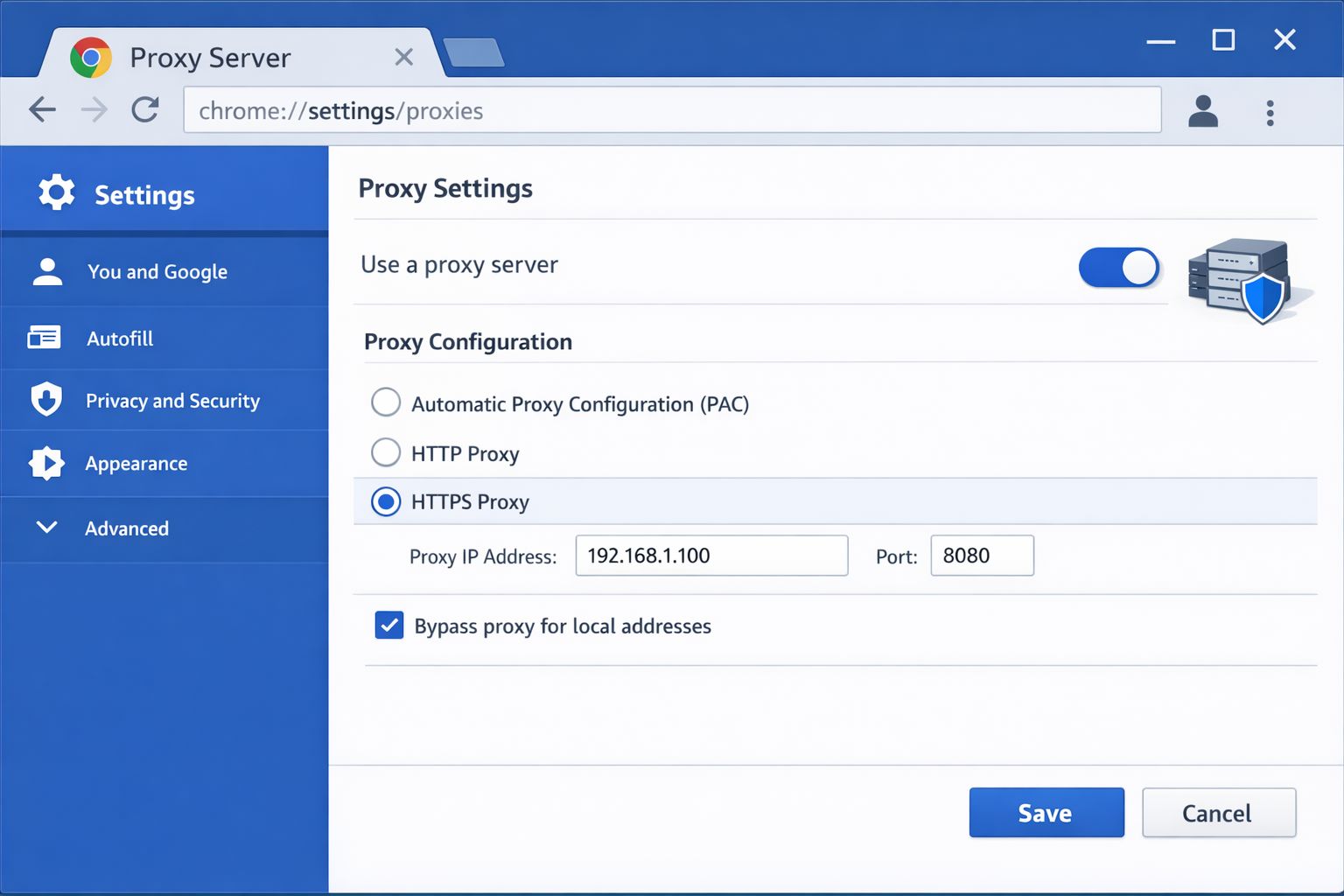
In the modern landscape of web development, cybersecurity, and data acquisition, the ability to effectively manage proxy server settings chrome is a fundamental skill. Google Chrome, while built on the robust Chromium engine, does not operate as an isolated network entity; instead, it integrates deeply with the host operating system’s networking stack. This technical guide provides an exhaustive look into configuring, managing, and optimizing proxy settings within Chrome to ensure privacy, facilitate web scraping, and bypass localized restrictions.
1. Understanding the Architecture: Chrome vs. The System
Unlike some browsers that maintain an internal proxy configuration, Chrome defaults to using the proxy server configuration of the underlying operating system. When you navigate to the settings menu to modify your connection, Chrome acts as a bridge to Windows’ “Network & Internet” settings or macOS’s “System Settings”.
This architectural choice means that any manual changes made through the standard Chrome interface will apply system-wide, affecting not just your browser but also background updates, email clients, and other connected applications. For IT professionals who require “Chrome-only” proxy traffic, this necessitates the use of third-party extensions or specific command-line arguments to isolate the traffic.
2. Manual Configuration: A Detailed Technical Walkthrough
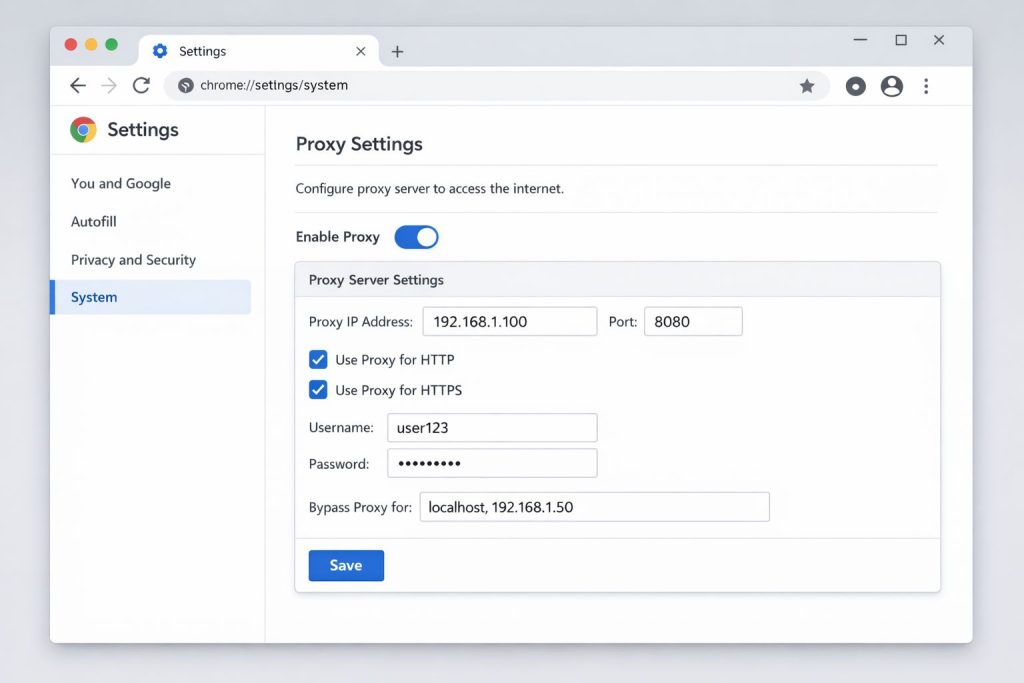
For users who need to establish a stable, persistent connection via a dedicated proxy, manual configuration is the standard starting point.
Step-by-Step for Windows 10/11:
1. Access Settings: Click the three dots in the top-right corner of Chrome, select Settings, then navigate to System on the left sidebar.
2. Open System Proxy: Click Open your computer’s proxy settings.
3. Automatic vs. Manual: Windows offers an “Automatic proxy setup” which can detect settings or use a setup script (PAC file). For most professional use cases, scroll to Manual proxy setup.
4. Input Credentials: Toggle on Use a proxy server, then enter the IP address and port.
5. Exceptions and Whitelisting: Professionals should utilize the “Use the proxy server except for…” box to add local addresses or internal development URLs that should not be routed through the proxy.
Step-by-Step for macOS:
1. Navigate Path: Follow the same initial steps in Chrome to reach the System settings and open the computer’s proxy configuration.
2. Protocol Selection: macOS requires you to select the specific protocol, such as HTTP, HTTPS, or SOCKS proxy.
3. Authentication: Enter the server address and port. If the server requires a password, check the “Proxy server requires password” box and input your credentials. Note that recent macOS versions (Monterey and later) have known issues with SOCKS5 proxies that require a username and password, often necessitating IP whitelisting instead.
3. Enhancing Workflow with Chrome Proxy Extensions
Manual setup is often insufficient for high-velocity tasks like SEO auditing or market research. Chrome proxy extensions or managers (like FoxyProxy or vendor-specific tools) offer several advantages:
• Isolation: They allow you to use a proxy only within the Chrome environment, leaving the rest of the system on the default connection.
• Rapid Switching: Users can switch between a rotating proxy for scraping and a static residential proxy for session-sensitive tasks without digging into system menus.
• Visual Feedback: Many extensions provide a status indicator (e.g., a green or red dot) to signify whether the connection is active or failing.
• Geo-Targeting: Extensions simplify the process of filtering proxies by country or region, which is essential for verifying localized content or travel fare aggregation.
4. Strategic Implementation: Choosing the Right Proxy Type
Effective management of proxy server settings chrome also involves selecting the correct infrastructure for the task at hand:
• Residential Proxies: These use IPs assigned by ISPs to real households, making them ideal for web scraping as they are less likely to be detected as bots.
• Datacenter Proxies: These offer high speeds and low latency, suitable for high-bandwidth tasks like large-scale video collection or price monitoring.
• SOCKS5 Proxy: This protocol is more versatile than HTTP, as it can handle any type of traffic (TCP/UDP) and is often used for secure tunneling and more complex data gathering.
For those looking for a professional-grade solution to integrate with Chrome, I recommend exploring Yilu Proxy. They offer a vast global IP pool that works seamlessly with both manual settings and third-party managers. Notably, they provide a free trial, which is an excellent way for developers to test their dedicated proxy or rotating proxy performance in a real-world environment before committing. (Note: This recommendation is based on general industry knowledge and is not explicitly detailed in the provided sources.)
5. Security Implications and Troubleshooting
Using a proxy in Chrome is not just about data gathering; it is a critical security measure. Proxies act as a filter, hiding your real IP address from websites that use cookies and tracking to monitor your web activity. This is especially vital when using unsecured public Wi-Fi, where data can be easily intercepted by third parties.
Common Troubleshooting Tips:
• Connection Errors: If Chrome shows a “no internet” error after configuration, verify the IP and port in your system settings. A red status icon in an extension often indicates a failure to authenticate.
• Authentication Prompts: If your proxy requires a password but you haven’t used an extension, Chrome will typically prompt you for credentials the first time you attempt to load a page.
• Verification: To confirm your proxy settings are active, use an “IP lookup” tool. If the tool displays your proxy’s location rather than your ISP’s location, the configuration is successful.
By mastering these proxy server settings chrome, IT practitioners can ensure their web operations are not only successful but also secure and private. Whether you are automating a socks proxy for a headless browser or manually configuring a gateway for secure browsing, understanding the interplay between Chrome and the OS is key to a stable workflow.