
 By Yilu Support
You want to be safer when you use the internet. Proxy server chrome settings can hide your IP address. They can also scramble your data. These settings help keep your identity private. They stop people from tracking you. You can visit websites from any place. Try Yilu Proxy’s free trial for a simple and safe way to begin.
Key Takeaways
Proxy server settings in Chrome can keep your IP address secret. They help protect who you are online.
If you use a trusted proxy provider, like Yilu Proxy, your privacy gets better. You can also see blocked content safely.
If you use proxies with VPNs or private browsers, you get more protection. This helps stop trackers and hackers from finding you.
Proxy Server Chrome Settings for Privacy
How Proxy Servers Work in Chrome
You may ask how proxy server chrome settings help. When you use a proxy in Chrome, your internet requests go to another server first. This server sits between you and the websites you visit. Your real IP address does not show. The proxy works like a shield. It sends your traffic before it goes online. This gives you more privacy. Websites cannot find out where you really are.
With proxy server chrome settings, you can:
Send your requests through a middle server.
Hide your real IP address from websites.
Keep your location hidden.
Get around blocks and see restricted content.
Stay safer from hackers and leaks, even on public Wi-Fi.
Direct Privacy Benefits
Proxy server chrome settings give you many privacy benefits. You can browse the web without showing who you are. Advertisers and trackers have a harder time following you. Your online actions stay private. You can visit sites from other places without anyone knowing your location.
Proxy servers let you:
Hide your IP address for private browsing.
Stop others from tracking what you do online.
Block websites from getting your personal data.
Browse more safely, even on shared networks.
Tip: To get better privacy, use a trusted proxy provider. Yilu Proxy has a free trial, so you can try these features with no risk.
Setting Up Proxy Server Chrome Settings

Accessing Proxy Settings
You want to change how Chrome connects to the internet. You can do this by adjusting your proxy server chrome settings. Start by opening Chrome. Click the three dots in the top right corner. Choose “Settings.” Scroll down and find “System.” Click “Open your computer’s proxy settings.” This will take you to your device’s network settings. Here, you can set up a proxy for Chrome.
Sometimes, you might run into problems when you try to access these settings. Here’s a table that shows common issues and how you can fix them:
Issue Type | Description | Resolution Steps |
|---|---|---|
Proxy Authentication | You see HTTP 407 errors because your credentials are wrong. | Check the proxy server address and make sure you use the right username and password. |
SSL Certificate Problems | The proxy blocks connections if certificates are not valid. | Install and trust valid certificates in all needed applications. |
DNS Failures | You cannot connect if DNS does not resolve the proxy address. | Use IPv4 and confirm DNS works for the proxy address. |
Network Connectivity | Changing settings randomly can break your connection. | Run ping and traceroute tests before you try proxy-specific fixes. |
Tip: If you get stuck, double-check your proxy details and restart Chrome. This solves many small problems.
Configuring a Proxy Server
You can set up a proxy server in Chrome with just a few steps. Follow this guide to get started:
Open Chrome and go to “Settings.”
Click “System” and then “Open your computer’s proxy settings.”
Choose “Manual proxy setup.”
Enter the proxy server address and port number.
If your proxy needs a username and password, enter those too.
Save your changes and restart Chrome.
When you set up your proxy server chrome settings, you should follow some best practices:
Pick a trusted proxy server. This keeps your data safe from theft or ads.
Stay away from open proxies. They are risky and can expose your information.
Turn on authentication. Use a username and password for extra security.
Keep your device updated. Updates close security holes that proxies might open.
Think about using a VPN if you want even more privacy.
If Chrome does not connect after you set up your proxy, try these troubleshooting steps:
Turn off proxy settings if you do not need them.
Clear Chrome’s cache. Old files can block connections.
Check your VPN. It might interfere with Chrome.
Change your DNS server to a public one.
Reset Chrome to its default settings.
Flush the DNS cache using your computer’s command line.
Disable any Chrome extensions that might cause problems.
Note: You can fix most connection issues by following these steps. If you still have trouble, check your proxy server details again.
Using Yilu Proxy
You want a proxy that is easy to set up and keeps your browsing private. Yilu Proxy stands out because it is simple to use and offers strong privacy features. Many users choose Yilu Proxy because it works well with Chrome and does not require complex steps. You can start with their free trial and see how it fits your needs.
Yilu Proxy is part of a large network of proxy providers. It ranks high among similar services. You get reliable privacy and quick setup. If you want to compare, IPidea is the largest residential proxy service, but Yilu Proxy gives you a good balance of privacy and ease of use.
Try Yilu Proxy’s free trial. You can test all the features without risk. This helps you decide if it is the right choice for your proxy server chrome settings.
Enhancing Security and Performance
Testing Proxy Speed
You want your browsing to feel fast and smooth. When you use a proxy, speed can change. Some proxies make pages load faster because they save copies of popular files. Others compress data, which helps if your internet is slow. Proxies can also keep connections open, so you do not have to wait every time you click a link. If the proxy is close to you, you get less lag and quicker videos. Some even make sure important things, like video calls, work better.
You can test your proxy speed in Chrome with different tools. Here is a quick guide:
Testing Method | Description |
|---|---|
Quick IP Checkers | Instant verification (30 seconds) |
Proxy Checker Tools | Multi-proxy testing |
IP Databases | Deep analysis |
Local Proxy Testers | Real-world performance |
Browser Testing | Hands-on verification |
Command Line Tools | Developer approach |
Custom Testing Scripts | Advanced automation |
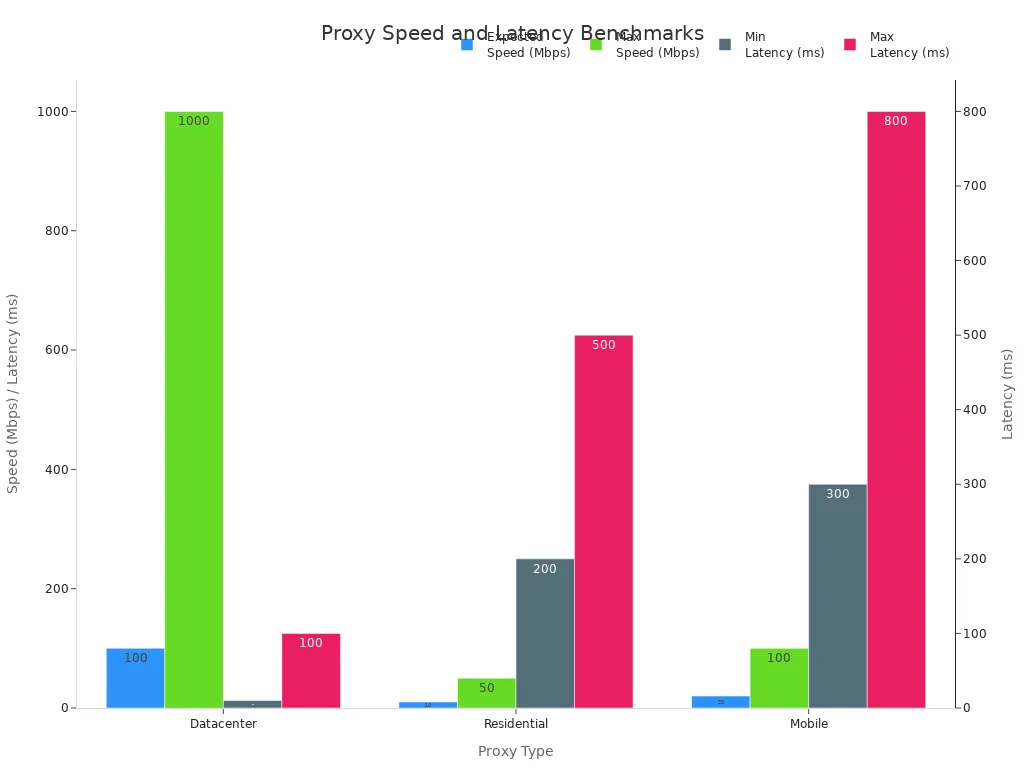
You can also look at this chart to see how different proxies compare:
Disabling Chrome Sync
Chrome sync saves your bookmarks, passwords, and history to your Google account. This can be helpful, but it also means your data goes to the cloud. If you want more privacy, you can turn off Chrome sync. Go to Chrome settings, find “You and Google,” and switch off sync. This keeps your browsing data on your device. You get more control over what you share.
Tip: Disabling sync works well with proxy server chrome settings. You keep your identity hidden and your data stays local.
Combining Proxies with VPNs or Private Browsers
You can boost your privacy by using more than one tool. Try using a VPN with your proxy. The VPN encrypts your traffic, and the proxy hides your IP address. You can also use private browsers or incognito mode. These tools do not save your history or cookies. When you combine them, you get stronger protection from trackers and hackers.
Remember: Layering privacy tools gives you the best chance to stay safe online.
Benefits and Limitations
IP Masking and Geo-Restriction
You want to keep your location private when you browse. Proxy servers help you do that. They act as a middleman and hide your real IP address. You can visit websites that are blocked in your country. Many proxies are easy to set up and some are free. Here’s what you get:
You can mask your IP address.
You can access sites with geo-restrictions.
You can set up most proxies quickly.
You often find free options.
But you should know about the limits. Some websites can spot proxy servers and block them. Security is not always strong with free proxies.
Tip: If you need to bypass tough geo-blocks, try a paid proxy or combine it with a VPN.
Encryption and Identity Protection
You want to keep your data safe. Some proxy servers offer encryption. This means your information stays private as it moves online. You get extra protection from hackers and snoops. If you use a proxy with strong security, your identity stays hidden. Not all proxies encrypt your data, though. Free proxies often skip this step.
Feature | Free Proxy | Paid Proxy | VPN + Proxy |
|---|---|---|---|
IP Masking | ✅ | ✅ | ✅ |
Encryption | ❌ | ✅ | ✅ |
Identity Safety | ⚠️ | ✅ | ✅ |
Note: Always check if your proxy uses encryption before you trust it with sensitive info.
Performance and Compatibility
You want your browser to work fast. Some proxies slow down your connection. Others help speed it up by caching files. Compatibility matters too. Not every proxy works with every website or app. Chrome supports many proxy types, but you may run into issues with streaming or gaming sites.
Fast proxies improve your browsing.
Some proxies cause lag or block content.
Compatibility depends on the proxy and the site.
If you notice slow speeds, try switching to a different proxy or test your connection. You can also combine proxies with other privacy tools for better results.
Tips for Safe Browsing

Choosing a Reputable Proxy Provider
You need a proxy that is safe and works with Chrome. Pick a provider that many people trust. Yilu Proxy is popular because it protects your privacy and has a free trial. When you choose a proxy, make sure it is stable. A stable proxy keeps you online without problems. Fast proxies help you watch videos and browse quickly. Anonymity means your identity stays secret and your data is safe. If a provider does well in these things, you can trust it.
Stability helps you stay connected.
Speed lets you browse and stream fast.
Anonymity keeps your identity safe.
Tip: Pick a provider with good reviews and clear privacy rules.
Maximizing Privacy with Multiple Tools
You can get more privacy by using more than one tool. Try using a proxy with a VPN. The VPN scrambles your data, and the proxy hides your IP address. You can also use Tor or incognito mode. Tor sends your traffic through many servers. Incognito mode stops Chrome from saving your history. Using these tools together makes it harder for people to track you.
Use a proxy and VPN for better protection.
Try Tor for extra privacy.
Use incognito mode to keep your history secret.
Safe Browsing Habits
You should be careful every time you go online. Do not use free proxies for private things. They might record what you do or add bad software. Always check if your proxy is anonymous or elite. These types keep your identity hidden. Use HTTPS or a VPN to keep your connection safe. Watch your proxy’s speed. Slow speed can mean something is wrong.
Don’t use free proxies for private info.
Pick anonymous or elite proxies.
Use HTTPS or VPNs for safe browsing.
Check proxy speed for safety.
Note: Smart choices and good habits help you stay safe and private online.
You can make your privacy and security better with proxy server Chrome settings. Trusted proxies such as Yilu Proxy hide your IP address. They keep your data safe and let you visit blocked sites.
Update Chrome often
Test Yilu Proxy’s free trial
Be careful and browse safely each day!
FAQ
How do you know if your proxy is working in Chrome?
You can visit a site like “whatismyip.com”. If your IP address changes, your proxy works.
Can you use a proxy and VPN together in Chrome?
Yes! You can use both. The VPN encrypts your data. The proxy hides your IP address.
What should you do if Chrome cannot connect after setting a proxy?
Try checking your proxy details. Clear your browser cache. Restart Chrome. If it still fails, disable the proxy and test your connection.