
 By Yilu Support
You want more privacy online and faster access to US content on your Android. A free US SOCKS5 proxy can help you get past location blocks and fix network issues. With the right proxy, you do not have to worry about safety or privacy online. Yilu Proxy’s free trial gives you a safe way to keep your privacy and have a better experience.
Here are some usual reasons people want a US SOCKS5 proxy on Android:
Reason | Description |
|---|---|
To protect your privacy | Changing your IP address makes it harder for companies to watch what you do online. |
To get a better online experience | Switching your IP lets you use accounts or find better prices when you travel. |
To fix network problems | A new IP can help with slow speeds or lost connections from bad local addresses. |
Key Takeaways
A free US SOCKS5 proxy keeps your online actions private. It lets you see US content on your Android phone.
Pick trusted places like Yilu Proxy for good SOCKS5 proxies. This helps you stay safe and get fast speeds.
Check if the proxy is really in the US with IP lookup tools. This helps you get around location blocks.
Always do security checks, like DNS leak tests, to keep your data safe when you use a SOCKS5 proxy.
Use easy setup steps in apps like Telegram. You can also use special proxy apps to set it up quickly.
Find Free US SOCKS5 Proxy

Trusted Proxy Sources
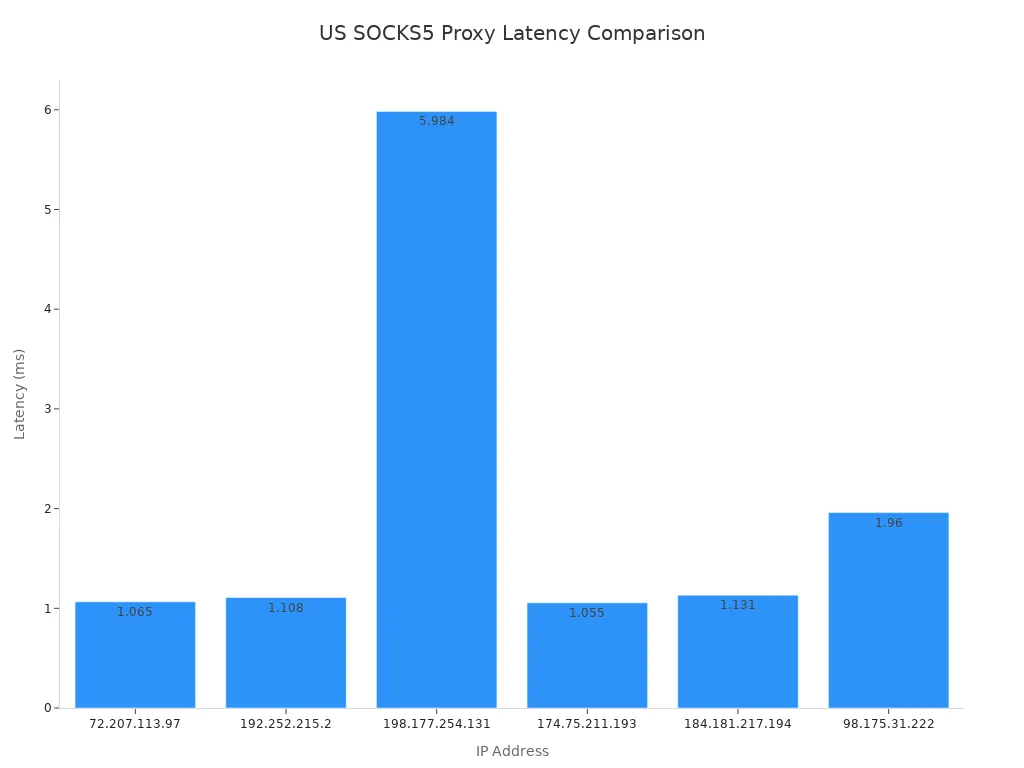
You want a socks5 proxy server that works well on Android. There are many free us socks5 proxy choices. Some do not work fast or safe. Trusted sources are important for speed and safety. Yilu Proxy gives a free trial and is known for being good. You can find other socks5 proxy servers with US locations too. Here is a quick list of some trusted free us socks5 proxy servers:
IP Address | Port | Type | Location | Latency (ms) |
|---|---|---|---|---|
72.207.113.97 | 4145 | SOCKS5 | United States | 1.065 |
192.252.215.2 | 4145 | SOCKS5 | United States | 1.108 |
198.177.254.131 | 4145 | SOCKS5 | United States | 5.984 |
174.75.211.193 | 4145 | SOCKS5 | United States | 1.055 |
184.181.217.194 | 4145 | SOCKS5 | United States | 1.131 |
98.175.31.222 | 4145 | SOCKS5 | United States | 1.96 |
Lower latency means the connection is faster. Paid socks5 proxy servers are usually quicker and more stable. Free ones are fine for simple use.
Verify US Location
You need to check if your socks5 proxy server is really in the US. This helps you get past location blocks and see US-only content. Use online tools like IP lookup sites to check the IP address. Look for “United States” in the location. Test the latency too. Lower latency means the server is closer and faster. Good socks5 proxies have steady speeds and do not drop connections much.
Here are things to check for reliability:
Criteria | Description |
|---|---|
Protocol support | Does the proxy server support socks5 and other protocols? |
Privacy policy & logging practices | Does the provider promise not to log your activity? |
Observed behavior | Does the proxy server change your data or add headers? |
Performance | Is the latency low and connection stable? |
Usability | Is it easy to set up and use on Android? |
Safety Tips
Free socks5 proxy servers can be risky. You want to keep your privacy safe and avoid problems. Here are some safety tips:
Choose socks5 proxies from trusted places like Yilu Proxy’s free trial.
Do not use proxy servers that ask for personal details or look strange.
Never use a socks5 proxy for important things like banking.
Check if the proxy server has a clear privacy policy.
Watch for slow speeds or sudden disconnects.
Tip: Free socks5 proxies can be slow or unsafe. Paid ones give better safety and speed, but free us socks5 proxy servers are okay for easy tasks.
Some risks are hackers attacking open proxy servers, data leaks, and people watching what you do. Some proxy servers may let bad stuff through or cause legal trouble if you use them to break rules. Always use socks5 proxies the right way to stay safe.
Set Up SOCKS5 Proxy on Android
Ready to set up socks5 proxy on your android? You can do this in a few ways. Let’s walk through each method so you can configure and use your proxy without any stress.
Manual Proxy Setup
You can set up socks5 proxy manually on your android device. Many apps, like Telegram, let you enter socks5 proxy settings right inside the app. Here’s how you do it with Telegram:
Open the Telegram app on your android phone.
Tap the three-line menu in the top-left corner.
Pick Settings from the menu.
Scroll down and tap Data and Storage.
Find the Proxy section and tap Proxy Settings.
Turn on Use Proxy.
Tap Add Proxy and choose SOCKS5 as the type.
Enter your socks5 proxy server details:
Server (IP Address)
Port
Username and Password (if needed)
Tap the checkmark icon to save your settings.
You can use similar steps in other apps that support socks5 proxy. Always look for proxy settings in the app’s menu or advanced settings.
Tip: If you want to use socks5 proxy for all apps on your android, you might need to change network settings or use a special app. Not every android device lets you set up socks5 proxy for the whole system.
Using Proxy Apps
Some apps make it easy to set up socks5 proxy on android. These apps help you manage your proxy server and switch between different socks5 proxy servers. Popular choices include ProxyDroid, Shadowsocks, and Socks5 Proxy Client.
ProxyDroid: Lets you set up socks5 proxy for your whole android device. You can enter the proxy server IP, port, and authentication details.
Shadowsocks: Works with socks5 proxy and gives you extra privacy. You can add multiple socks5 proxy servers and switch between them.
Socks5 Proxy Client: Simple app for connecting to socks5 proxy servers. You just enter the server info and start the connection.
Most proxy apps have a clear place to enter socks5 proxy settings. You can usually find options for server IP, port, username, and password. Some apps let you save different socks5 proxy servers and pick the one you want.
Note: Always download proxy apps from trusted sources like Google Play. This keeps your android safe from bad apps.
Authentication Steps
When you set up socks5 proxy, you might need to enter authentication details. This helps keep your connection secure and stops others from using your socks5 proxy server. Here’s what you need to know:
Go to Advanced Settings in your proxy app or android network settings.
Pick the manual option to enter your socks5 proxy server’s IP address and port.
If your socks5 proxy server needs authentication, you’ll see options for Username/Password or IP Authentication. Enter your username and password if asked.
Here’s a quick look at common authentication methods for socks5 proxy:
Authentication Method | Description |
|---|---|
Username and Password | You enter a username and password to use the socks5 proxy server. |
IP Whitelisting | The socks5 proxy server lets you connect only from approved IP addresses. |
Always double-check your socks5 proxy settings before you save. Make sure you enter the right IP address, port, and authentication info. If you get an error, check your socks5 proxy server details and try again.
🛑 Save your socks5 proxy settings and restart your connection or app. This makes sure your android uses the new socks5 proxy server.
You can now use your mobile socks5 proxy to browse, chat, or stream with more privacy. If you want to change socks5 proxy servers, just update your proxy settings or switch servers in your proxy app.
Test SOCKS5 Proxy Connection
Confirm Proxy Is Working
You want to make sure your socks5 proxy is active and your connection is secure. Start by checking your IP address. Visit a site like WhatIsMyIP or IPinfo. If your socks5 proxy is set up right, you should see a US IP address. This means your proxy is working and your android device is using the socks5 proxy server.
Here’s a quick way to check:
Connect to your socks5 proxy.
Open your browser and go to an IP checker website.
Look for a US location next to your IP address.
If you see your real location, your socks5 proxy is not working. Try restarting your connection or double-checking your socks5 proxy settings.
Tip: Some apps show your current IP address in their settings. You can use this to confirm your socks5 proxy is active.
Security Checks
You want to keep your privacy safe when using a socks5 proxy. The dns leak test helps you see if your connection is leaking information. Go to a dns leak test website and run a quick scan. The test checks which DNS servers your browser uses. If you see your ISP’s DNS, your socks5 proxy might be leaking data.
Pixelscan is another tool you can use. It checks for DNS leaks and shows how much information your browser shares. If Pixelscan finds leaks, you should fix your socks5 proxy settings or try a different proxy server.
Here are some basic security tips for using a socks5 proxy:
Always run a dns leak test after setting up your socks5 proxy.
Use trusted proxy servers with clear privacy policies.
Avoid entering personal info when connected to free socks5 proxies.
Restart your connection if you notice slow speeds or strange behavior.
Security Check | What to Do |
|---|---|
IP Address | Confirm it shows a US location |
DNS Leak Test | Make sure no leaks appear |
Proxy Server Policy | Check for privacy and no logging |
🛡️ Stay alert when you use a socks5 proxy. Regular checks help you keep your connection safe and private.
Troubleshoot SOCKS5 Proxy Issues
Connection Problems
You might run into connection problems when you use socks5 on your android device. Sometimes, the socks5 proxy just won’t connect, or it drops out after a few minutes. These issues can happen for a bunch of reasons. Here are some of the most frequent problems you’ll see:
Misconfigured socks5 proxy settings can block your connection.
Socks5 traffic isn’t always encrypted, so your browsing activity might show up to your ISP.
The proxy app might not support socks5, or it could crash.
Your network might block the socks5 proxy server.
DNS leaks can expose your real location.
If you want to fix these problems, try these steps:
Install a proxy client app like Drony, SocksDroid, or Shadowsocks. These apps help you set up socks5 proxy on android.
Enter the socks5 proxy IP address, port, and any login details in the app.
Test your connection with an IP checker to make sure your socks5 proxy is working.
Tip: Always double-check your socks5 proxy settings before you connect. This helps you avoid simple mistakes.
Proxy Not Working
Sometimes, your socks5 proxy just stops working or slows down. You might see errors, or your apps won’t load. Let’s look at some common mistakes and how you can fix them. Here’s a table with issues you might face:
Mistake Type | Description |
|---|---|
Open proxy or weak authentication | Anyone can use your socks5 proxy, or passwords are too simple. |
Incorrect SSL/HTTPS termination | The socks5 proxy doesn’t encrypt your data or mishandles certificates. |
Errors in redirection and headers | Transparent proxies can mess up your socks5 proxy connection. |
Misconfigured cache | Bad caching slows down your socks5 proxy. |
DNS leaks and incorrect routing | Your requests might skip the socks5 proxy and expose your info. |
Logging issues | No log rotation or encryption can leak your data. |
Using public/free proxies | Using these for sensitive stuff can put your security at risk. |
If your socks5 proxy stops working or gets slow, try these quick fixes:
Restart your proxy app and reconnect to the socks5 proxy server.
Update your socks5 proxy settings with the right IP and port.
Switch to a different socks5 proxy if the current one is unreliable.
Clear your app’s cache to fix performance issues.
Run a DNS leak test to make sure your socks5 proxy is protecting your data.
🛠️ Following best practices for using socks5 proxies keeps your connection safe and smooth. Always use trusted proxy servers and avoid public proxies for important tasks.
You now know how to use a free us socks5 proxy on your Android. First, you picked a socks5 proxy that works well. Then, you set up the socks5 proxy on your phone. Last, you checked your connection to make sure it is safe. A free us socks5 proxy lets you use US services and helps keep your privacy safe. Always choose socks5 proxies from trusted places like Yilu Proxy’s free trial. Be careful and protect your privacy every time you use a socks5 proxy.
Remember: Using proxies safely gives you better privacy and makes your online experience smoother.
FAQ
How do I know if my SOCKS5 proxy is safe?
You can check the proxy’s privacy policy. Trusted sources like Yilu Proxy offer clear rules. If you see strange pop-ups or slow speeds, switch to another proxy.
Can I use a free SOCKS5 proxy for streaming?
Yes, you can stream with a free SOCKS5 proxy. Sometimes, the connection may slow down. Paid proxies work better for HD streaming.
Do I need special apps to use SOCKS5 on Android?
You don’t always need special apps. Some apps like Telegram let you enter proxy details. If you want to use SOCKS5 for all apps, try ProxyDroid or Shadowsocks.
What should I do if my proxy stops working?
Try these quick fixes:
Restart your proxy app.
Check your IP and port.
Switch to another proxy server.
Tip: Always test your connection after making changes.